
 Products
360 video software
Clips from the 360 booth are processed and uploaded automatically, play on the big screen, and each guest scans to collect their own.
- Licence
- ¥5,999≈ $840/ terminal
- Payment
- Once, no annual fee
- Hardware
- Not included

How it differs
Why pick it
- Clips queue themselves: each camera file is processed with the event's flow as soon as it reaches the PC, and urgent ones can jump the queue.
- Grade and approve: apply a DaVinci Resolve grading template, turn on stabilisation, and add manual review before storage or upload.
- Screen and QR code together: every clip has its own QR code, so each guest scans their own.
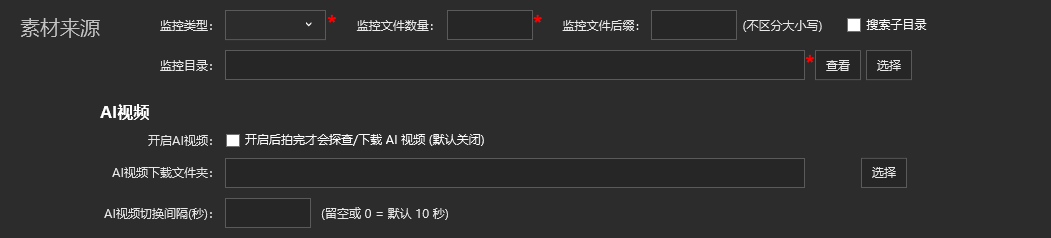
- AI video comes back by itself: the guest picks a style on their phone, the software downloads the result, and the monitor decides which clips go on screen.
Compared with
- vsAR Mirror Signature
AR Mirror Signature is a standalone edition of the photo software: it records signing videos on a Canon camera, adds the intro and outro automatically and plays them back in AR. This software adds automatic intake from the cameras, grading and review, display templates for the big screen, and AI video sync.
- vsPro
Pro makes AI video inside the photo workflow, moving from the original photo to the AI image. Here, the guest starts an AI video from their own clip's QR code and it comes back to the big screen. Choose Pro for AI photos and this software for 360 video.
- vsPhoto wall
The photo wall routes photos and videos to several screens and animates them on a timeline with flip walls and photo spheres. This software adds a QR code for every clip, a processing flow with grading and review, and AI video sync.
Not for, or watch out
- Venues with unreliable internet: registration, uploads, QR collection and AI video sync all need a connection.
- FTP-only setups that also want AI video: the guide says AI video sync needs uploads to the PepeFoto console, so check with us first if you only use FTP.
- Changing settings mid-shoot: a running event cannot be edited until it is stopped.
Where it fits
- 360 video at events: finished clips play on the big screen, and guests scan to watch and download them on their phone.
- Projects where the screen must match the event look: the template's text and backgrounds follow the event design.
- Projects with a set colour look: clips are graded with a DaVinci Resolve template.
- Events where clips need sign-off: add manual review before storage or upload.
- Events that offer an AI version too: guests pick a style on their phone and the result comes back to the big screen.
How it runs on site
- Install and register
Install the software and give its device code to the administrator, who registers the PC in the PepeFoto console.
- Create the event
Set up the event, choosing the folder camera files arrive in and how clips are numbered.
- Processing and display
Choose the processing flow (grading, stabilisation, review) and the screen template, and turn on uploads and AI video as needed.
- Test a clip
Record a test clip, check the picture and sound, then scan its QR code with a phone.
- Shoot
Clips are processed in number order and urgent ones can jump the queue; if review is on, keep someone on it.
- Screen and QR
The big screen plays clips with their QR codes; guests scan to watch and download, and can start an AI video.
- Close and back up
When processing and uploads are done, stop the event and back up; keep it running if AI videos are still due.

What you need
| Software | The 360 software installer, supplied by our delivery team. | Included |
|---|---|---|
| 360 rig | You supply the rig; model and quantity are confirmed in the quote. | Not included |
| Cameras | You supply the cameras; models are confirmed in the quote, and their files must reach the PC. | Not included |
| PC | You supply the PC; its spec is confirmed in the quote. Leave plenty of disk space for video. | Not included |
| Display | You supply the display for clips and QR codes; size and model are confirmed in the quote. | Not included |
| DaVinci Resolve | Only for graded events: open DaVinci Resolve and the matching template project on site. | Not included |
| Internet | Registration, uploads, QR collection and AI video sync all need internet. | Not included |
What guests get
Regular clip
The processed 360 clip plays on the big screen with its own QR code; scan it to watch and download.
AI video
The guest picks a style on their phone, and the finished AI video returns to the big screen with its own QR code.
On your side: local copies
With local storage on, each finished clip is also saved on the PC, ready to back up at close.
Costs
| Software licence | ¥5,999≈ $840 | Per terminal, perpetual, no annual fee; hardware excluded. |
|---|
- The 360 rig, cameras, PC and display are yours to supply and not included; the device allowance and services follow the quote.
- AI videos are started by guests and generated by the platform; their cost follows the quote.
No item in the credits table applies to this product.
Whether AI video uses credits, and which item, is not settled in our documents yet; check with us before ordering.
Every feature
- Create activities and monitor media folders
- Configure camera and device control workflows
- Manage processing progress, templates and uploads
- Display regular videos, AI videos and their QR codes
- Bind to the PepeFoto platform and upload to the PepeFoto console or cloud FTP
- Manual review before saving or uploading
- Put AI videos on or off screen, or lock them