
 Products
Pepe Print Console
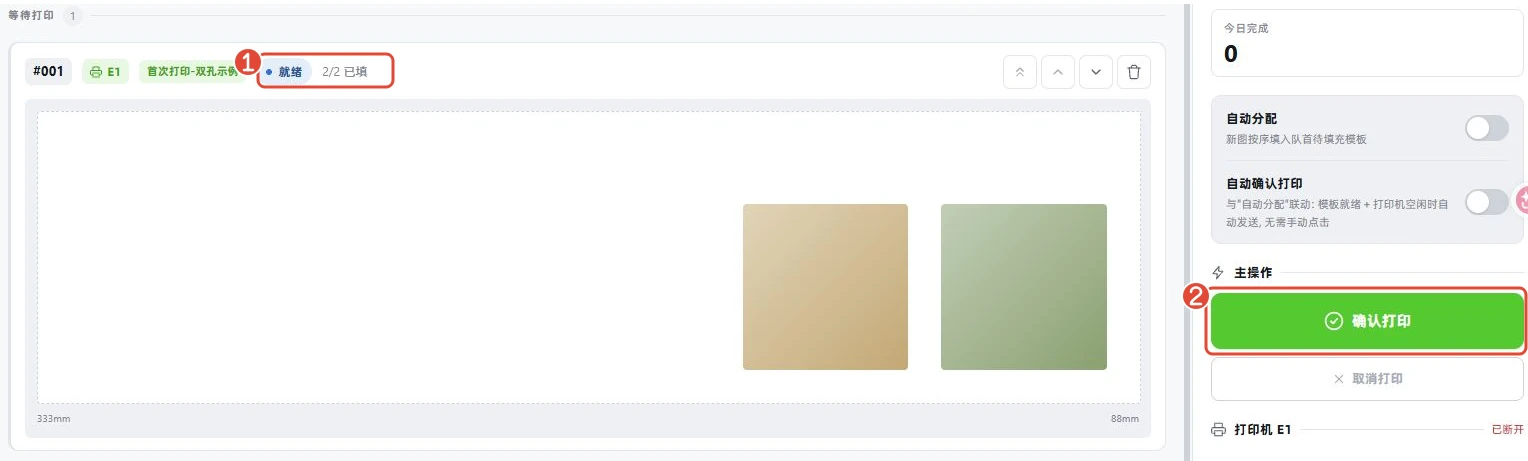
Photos from the booth, laid out and sent straight to the UV printer. Set up the jig once and save it as a template; incoming photos drop into the matching slots by shape; press Confirm print and follow the height check, data transfer and print progress step by step.
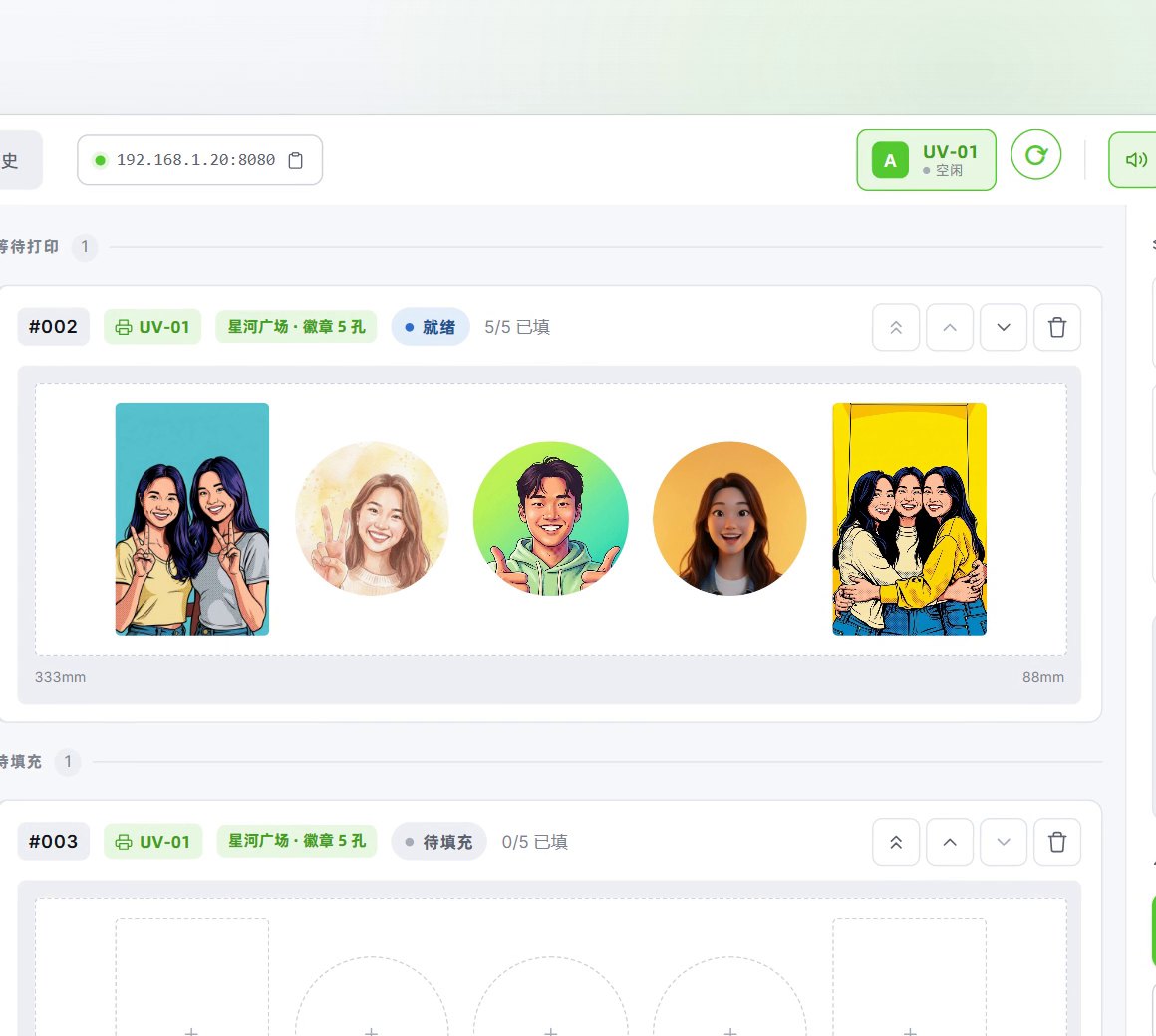
Real v1.0.42 interface · demo data, AI-generated people
The console in 46 seconds
A walk through the real v1.0.42 interface: layout template, photo intake, sending the job and the finished history.
Demo data and AI-generated people. Printing is sped up; a real print takes a few minutes.
Four steps from photo to print
Set the slots up once and let the event run.
Prefer not to confirm every layout? Jobs can also be sent automatically once set conditions are met.
A look at the interface
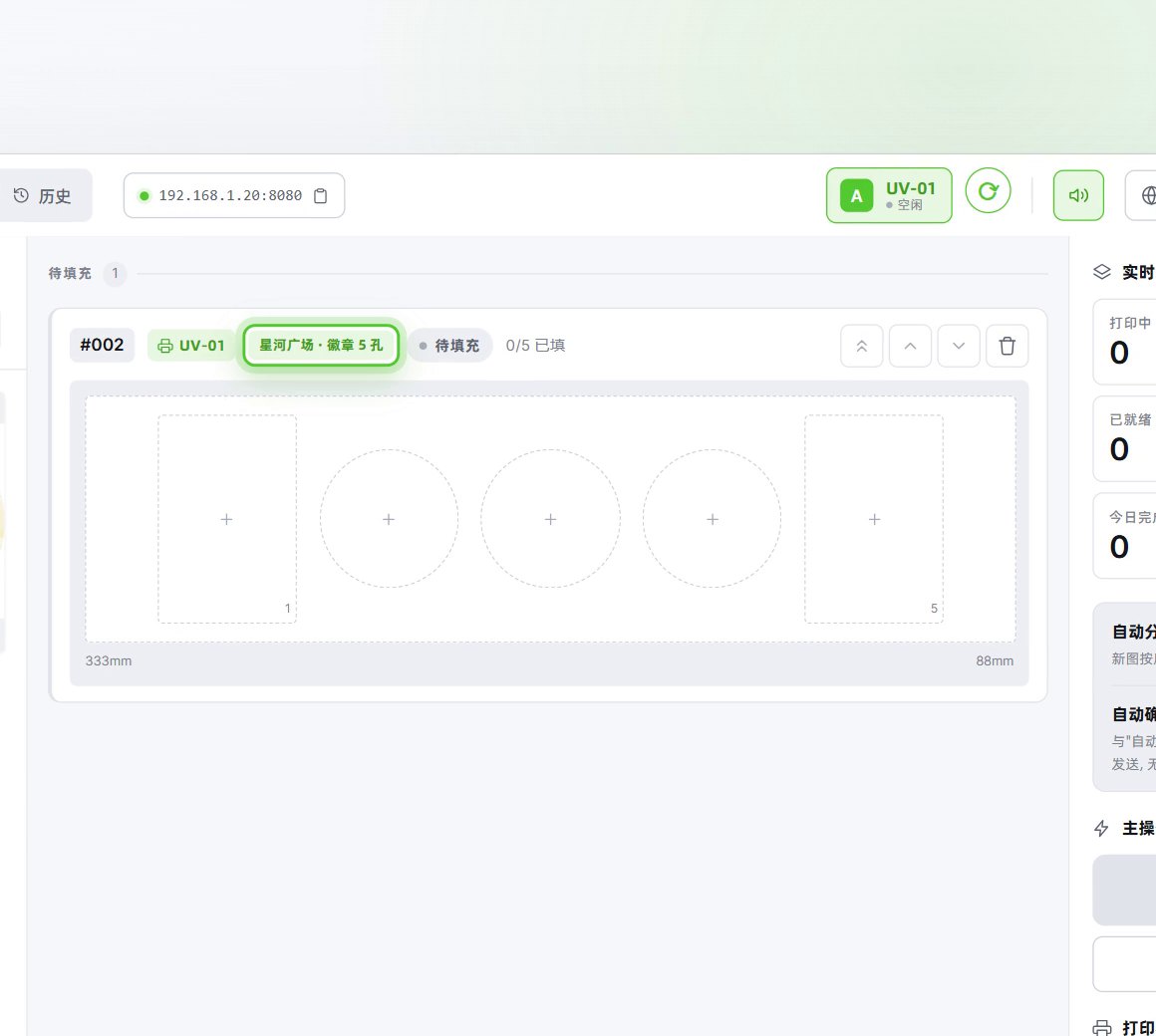
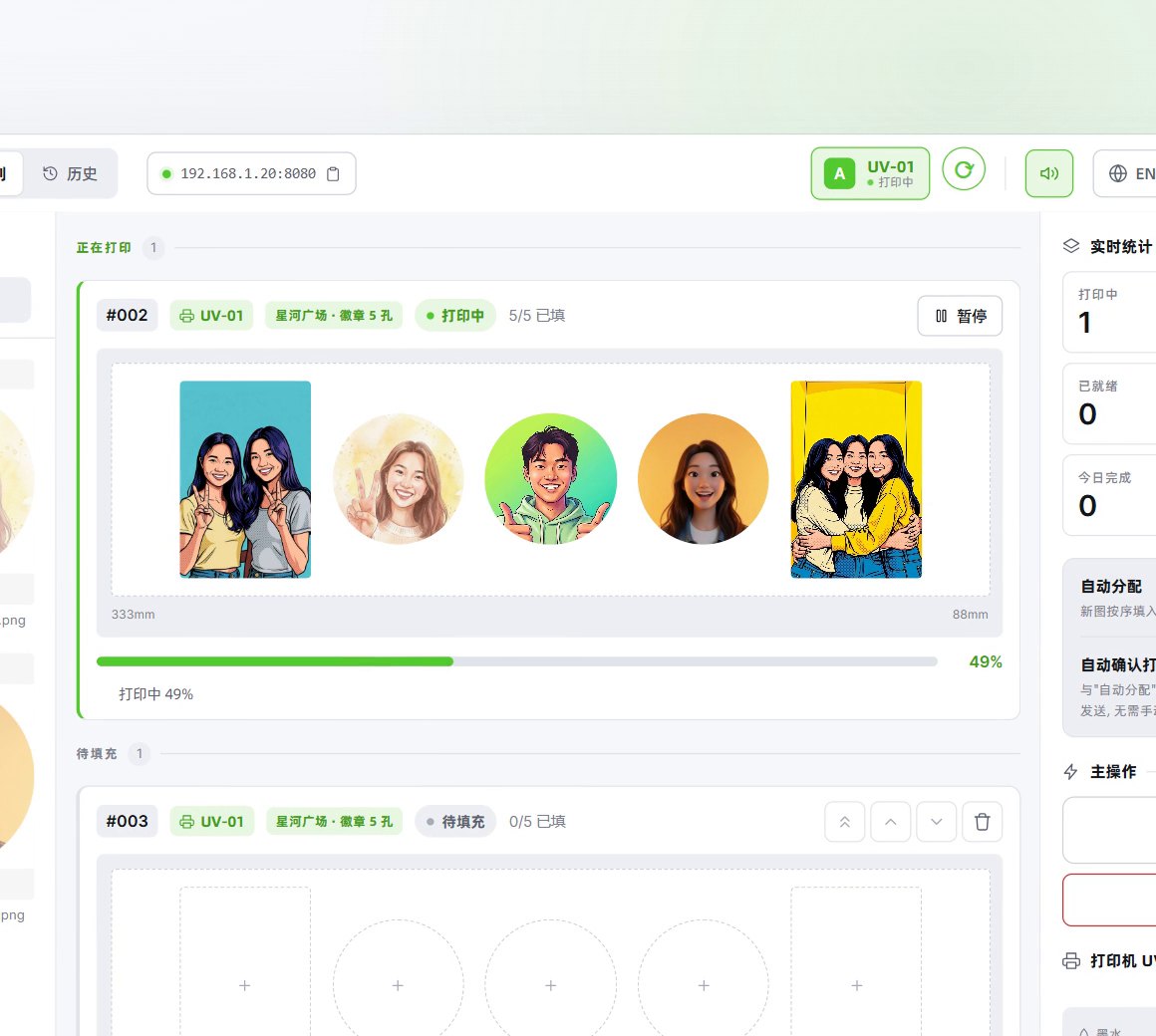
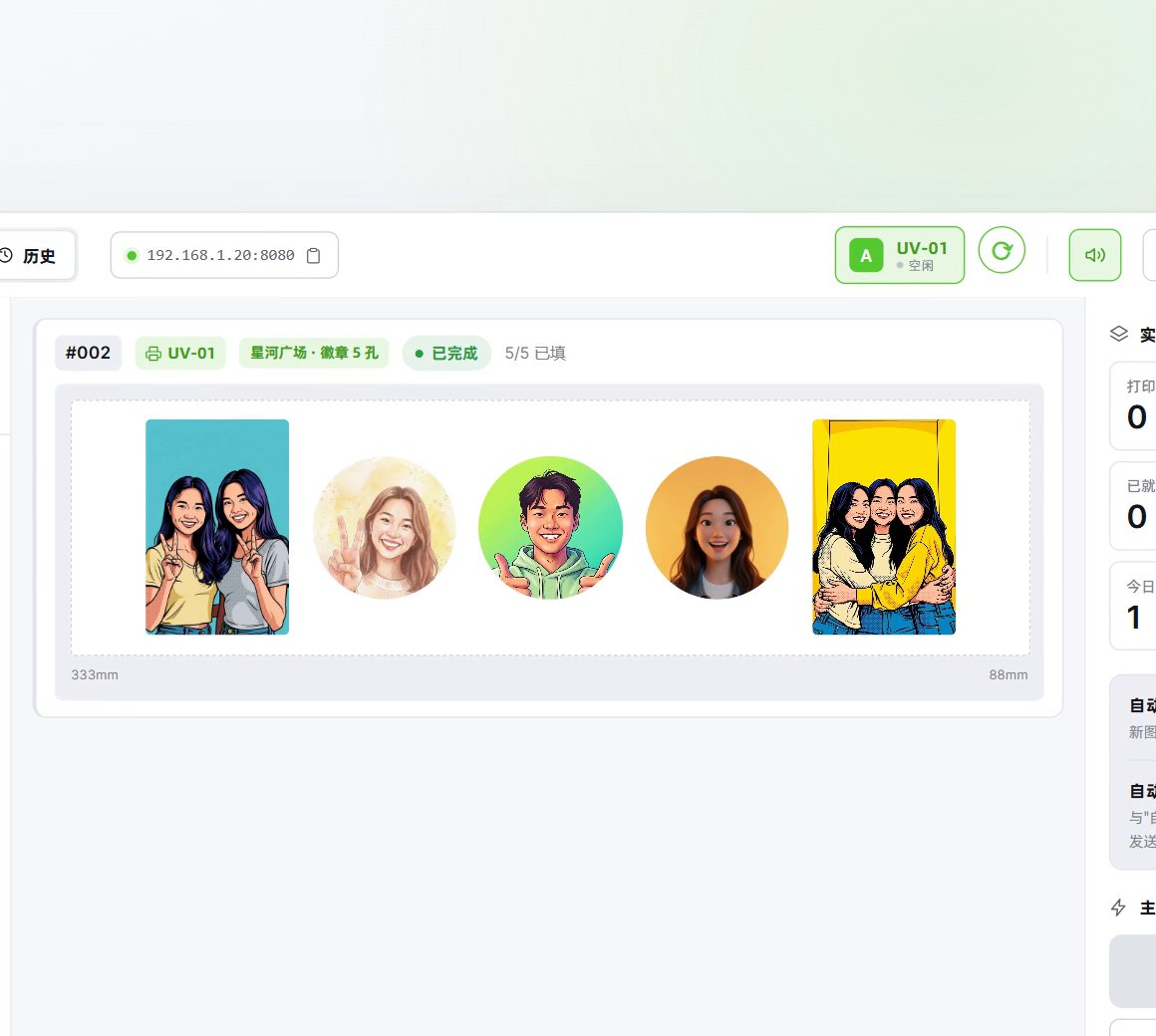
All screens are from the released v1.0.42 build; organisations, events and photos are demo data.
Software licence
Pepe Print Console is sold as a perpetual software licence with no annual fee, hardware not included. The device allowance and accompanying services are specified in the quote.
How it differs
Why pick it
- Set up a jig once: enter its slots in millimetres, save them as a template and load it whenever you use that jig.
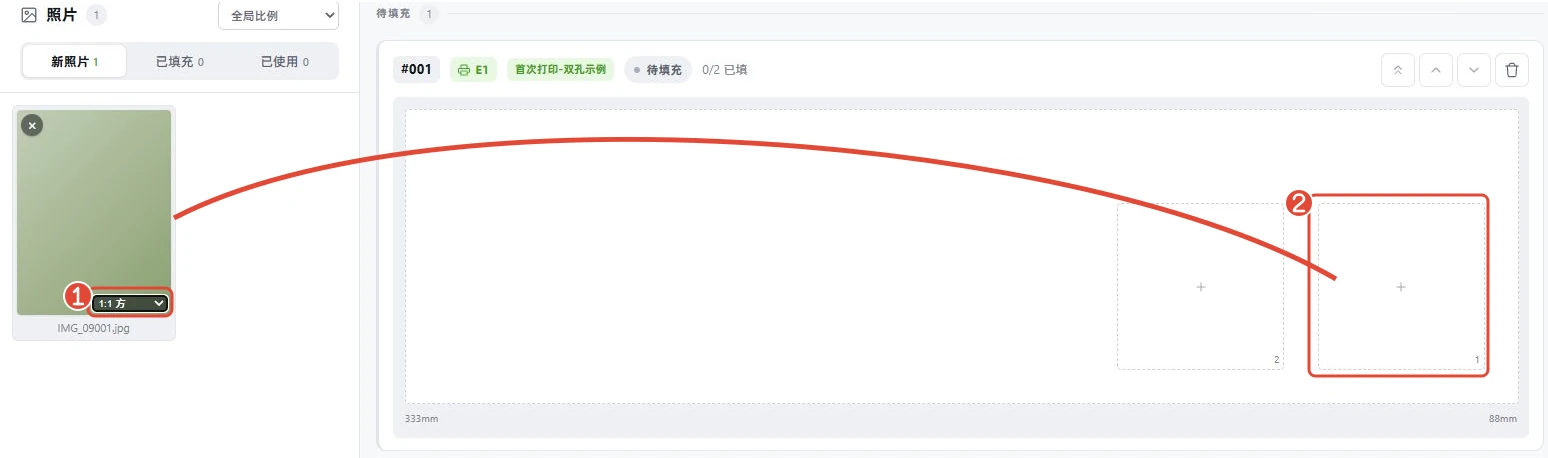
- Photos find their slots: with auto-assign on, photos whose ratio and shape tags match drop into the right slots.
- Jobs can go out on their own: a layout is sent when it fills or once the wait you set runs out, and it waits while the printer is busy.
- Made for printing on material: the printer measures height first, and a white ink base can go down first when the material needs it.
Compared with
- vsStandard
Standard prints by paper size through printers installed in Windows, with capture, layouts and printing in one package. The console takes no photos; it lays them into jig slots set in millimetres, and after a height check the UV printer prints onto the material.
- vsAI Stickers
AI Stickers turns photos into white-outlined stickers, printed and cut on the PepeFoto sticker machine or compatible print and cut equipment. The console has no sticker generation or cutting; it lays photos out by slot for a UV printer to print onto objects.
Not for, or watch out
- A UV printer whose model has not been confirmed: compatible models are confirmed before quoting, and the documented setup is the eufyMake E1.
- Skipping the test print: we recommend one print from the printer's own software before each session, as the console cannot see some of its prompts and an open one can stop the print.
- An unattended printer: someone has to load and change material and press START on the printer when prompted; automatic sending does not load material.
Where it fits
- Batch runs: a jig with several slots prints that many pieces per layout.
- A steady stream of photos: with auto-assign and automatic sending on, each layout prints when it fills or the wait runs out.
- Repeat runs of one item: load that jig's template, and re-measure height when the material or thickness changes.
- Mixed shapes, round or square, portrait or landscape: each photo goes to the slot that matches its ratio and shape.
How it runs on site
- Sign in
Sign in with the account from your admin and, the first time, bind the licence to this PC.
- Test print first
Before each session, run one real print from the printer's own software and clear any prompts.
- Connect the printer
Back in the console, load the printer credentials, pick the printer by serial number and wait until it shows idle.
- Set the slots
Add a box for each slot at its real position and size on the jig, and save the set as a template.
- Set the print mode
Decide whether the material needs a white base first; keep the height check and print the first layout by hand.
- Bring photos in
Photos land in the inbox folder; check their ratio and drag them into slots, then switch on auto-assign once the first print is right.
- Load and print
Fix the material in the jig and confirm the print; press START on the printer when prompted, and take the pieces out once it stops.
What you need
| Software and licence | The console software; your admin issues the account and licence, which is bound to this PC at first sign-in. | Included |
|---|---|---|
| PC | The PC that runs the console, on the same local network as the printer; confirm the spec with us before ordering. | Not included |
| UV printer | Compatible models are confirmed before quoting; the documented setup is the eufyMake E1. | Not included |
| Printer software and eufy account | Test prints run from eufyMake Studio or the official app; the first connection needs Studio signed in on this PC with the printer's eufy account, or credentials from your admin. | Not included |
| Jig | A jig to hold the material; each slot's real size and position is entered in millimetres. | Not included |
| Material and ink | Material and ink for what you print. | Not included |
| Photos | JPG or PNG photos placed in the inbox folder are ready to lay out; sites already linked to a booth can receive photos automatically, so confirm the link before ordering. | Not included |
What guests get
The printed piece
The photo printed onto the material in the jig, with its shape and size set by the slot.
Several per run
A layout prints up to one piece per slot; with automatic sending, a partly filled layout prints what it has.
Collected on site
A real print takes a few minutes; once the machine stops, the pieces come out and go to the guests.
Costs
- Material and ink are consumables you supply, and each session's test print in the printer's own software uses a piece of material.
- If photos get AI effects in PepeFoto photo software, that software is licensed separately and the credits are charged there, as set out on the credits page.
No item in the credits table applies to this product.
Every feature
- Connect compatible printers and check their status
- Configure jig positions and save reusable layout templates
- Assign photos to matching positions by aspect ratio
- Confirm print jobs manually or send them automatically when conditions are met
- Height check before printing, with an optional white base
- Finished layouts move to history, with a count for the day
Guides and questions
Help-centre guides
Common questions
Want on-site UV printing at your event?
Tell us the date, the footfall and what you want to print, and we will come back with a plan and a quote. Our Guangzhou showroom is open for visits.