

Pepe 打印中控台Pepe Print Console
活动现场拍的照片,排好版直接送去 UV 打印。治具孔位排一次存成模板,照片进来按形状自动落进孔位;点「确认打印」,测高、传图、打印进度逐项可见,打完的模板进入历史。Photos from the booth, laid out and sent straight to the UV printer. Set up the jig once and save it as a template; incoming photos drop into the matching slots by shape; press Confirm print and follow the height check, data transfer and print progress step by step.
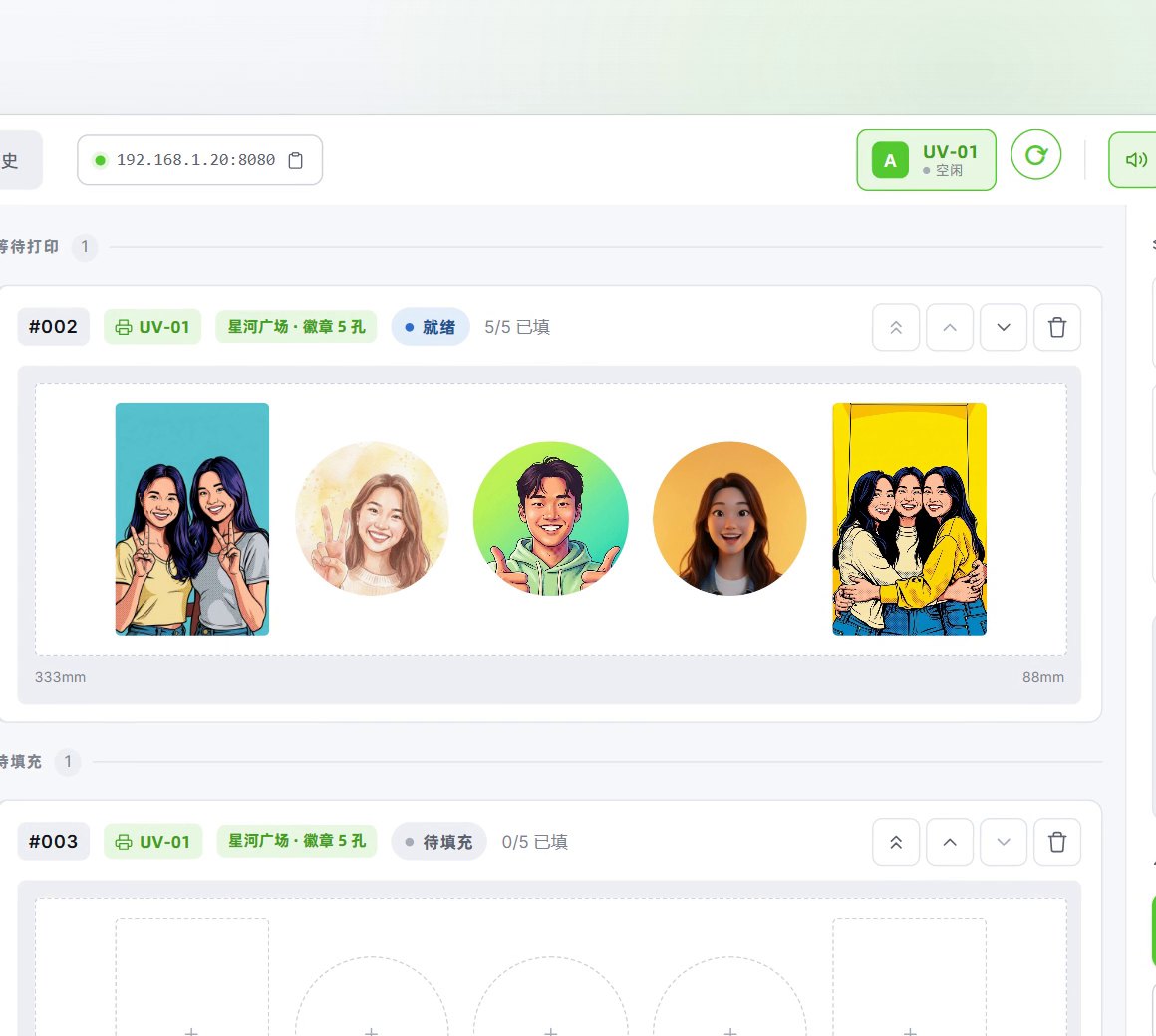
v1.0.42 真实界面 · 界面数据为演示,人物为 AI 生成Real v1.0.42 interface · demo data, AI-generated people
46 秒看懂打印中控台The console in 46 seconds
用 v1.0.42 正式版的真实界面走一遍:排版模板、收图落位、发送打印、打完归档。A walk through the real v1.0.42 interface: layout template, photo intake, sending the job and the finished history.
界面数据为演示,片中人物为 AI 生成;打印过程已加速,真实打印需要几分钟。Demo data and AI-generated people. Printing is sped up; a real print takes a few minutes.
四步:从收图到打完Four steps from photo to print
孔位设置一次,现场自动跑。Set the slots up once and let the event run.
不想每版都点?也可以设成满足条件后自动发送打印。Prefer not to confirm every layout? Jobs can also be sent automatically once set conditions are met.
界面一览A look at the interface
以下都是 v1.0.42 正式版的真实界面,组织、活动与照片为演示数据。All screens are from the released v1.0.42 build; organisations, events and photos are demo data.
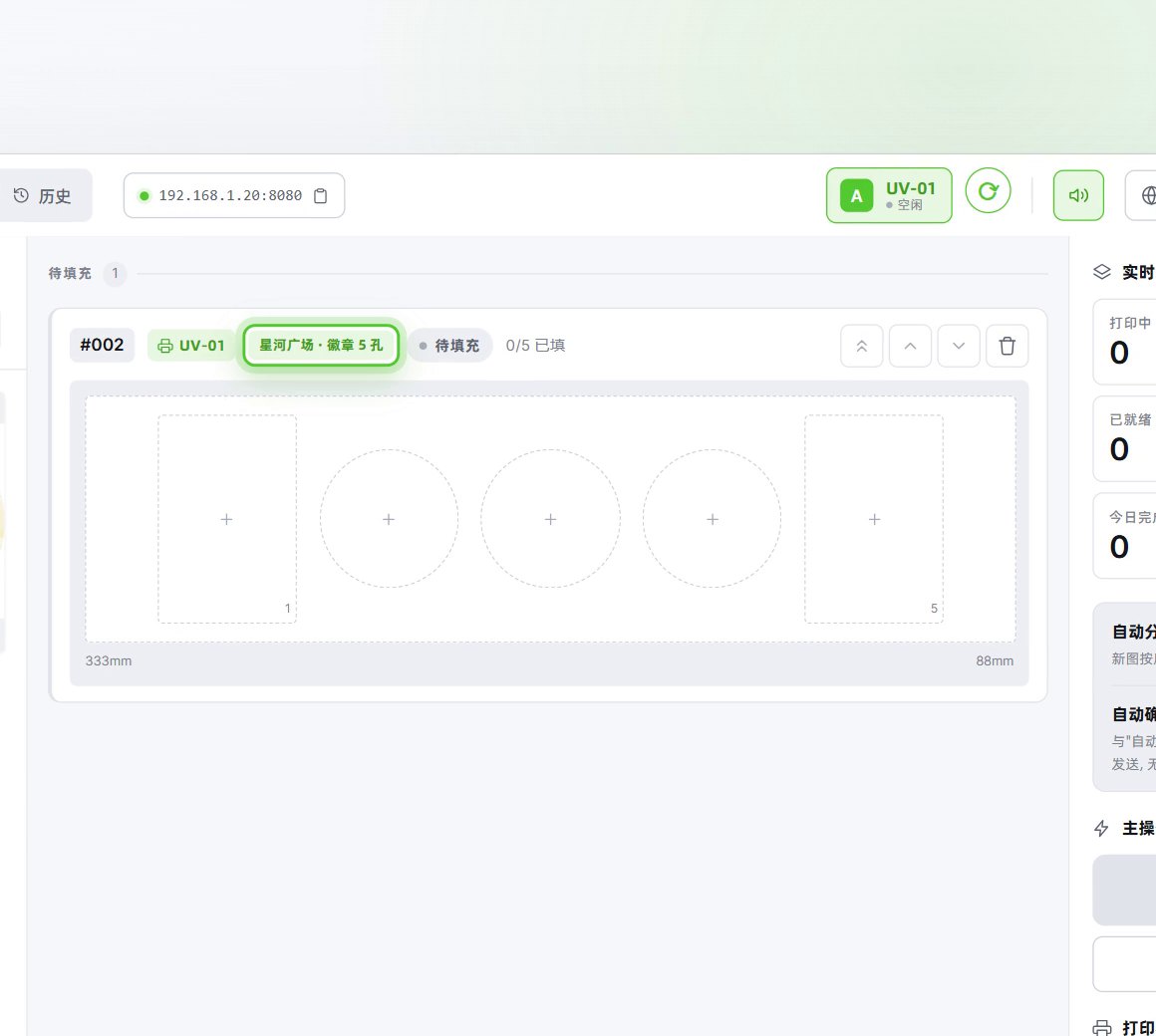
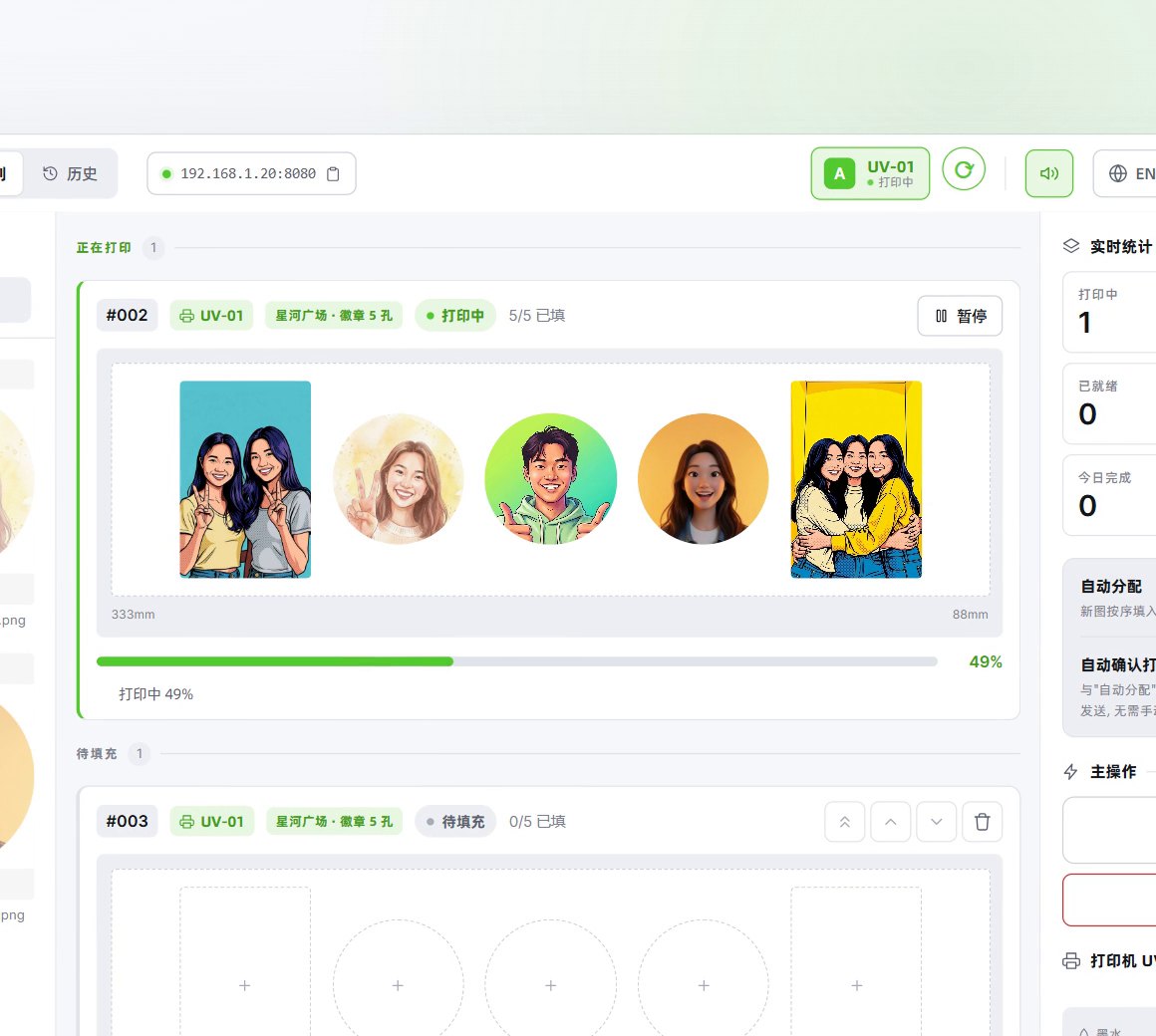
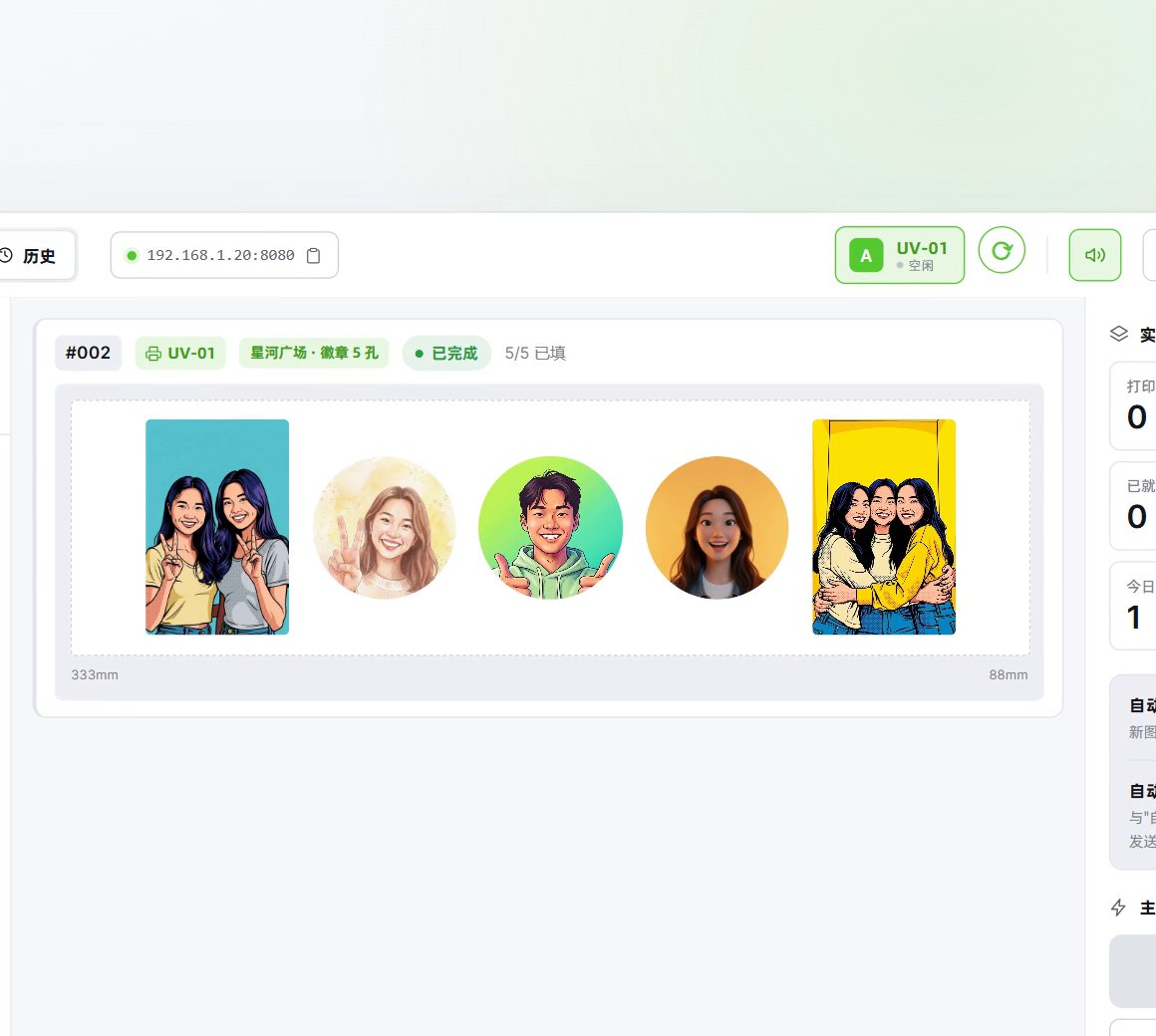
软件授权Software licence
Pepe 打印中控台按软件授权销售,一次买断、不收年费,不含硬件;适用设备数量及配套服务以报价约定为准。Pepe Print Console is sold as a perpetual software licence with no annual fee, hardware not included. The device allowance and accompanying services are specified in the quote.
和谁不一样How it differs
选它的理由Why pick it
- 治具设一次反复用:孔位按毫米设好存成模板,同一套治具下次直接加载。Set up a jig once: enter its slots in millimetres, save them as a template and load it whenever you use that jig.
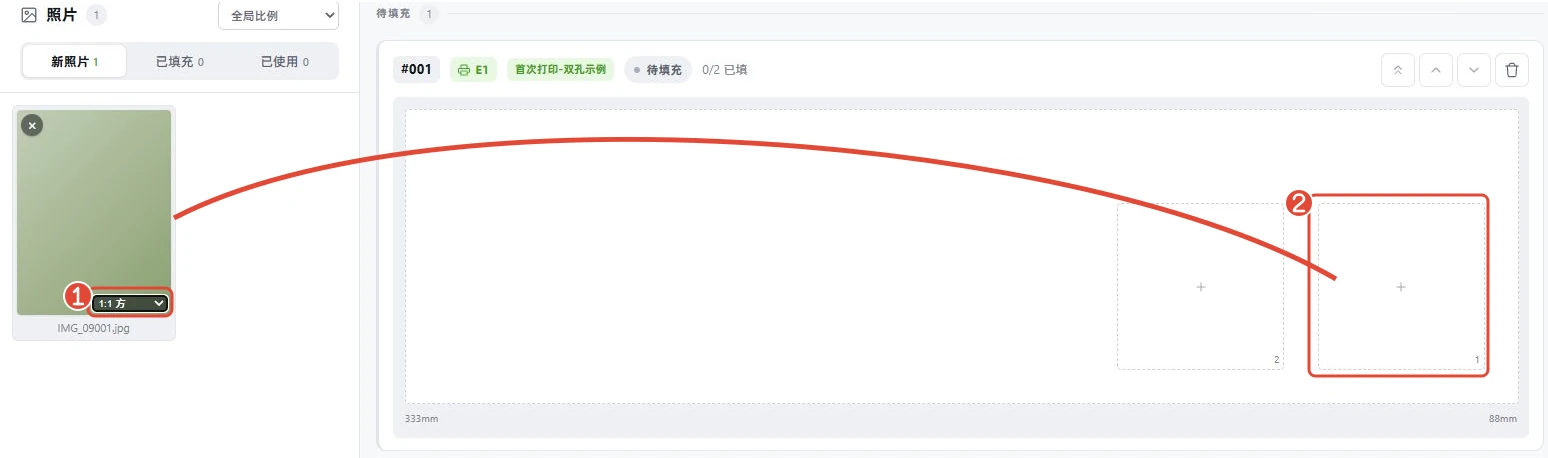
- 照片自己找孔位:开了自动分配,比例和形状标记对上的照片会落进匹配的孔位。Photos find their slots: with auto-assign on, photos whose ratio and shape tags match drop into the right slots.
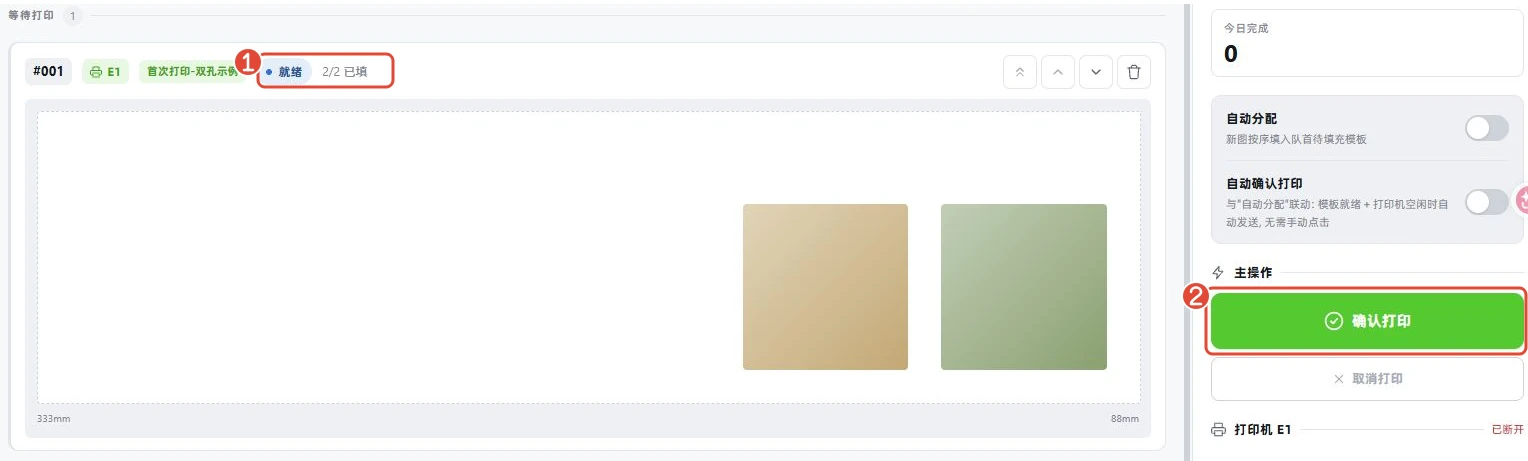
- 可以自动发送:模板填满或等够设定的秒数就发去打印,打印机忙时会等。Jobs can go out on their own: a layout is sent when it fills or once the wait you set runs out, and it waits while the printer is busy.
- 为印在材料上设计:打印前先测高,材料需要时可以先打一层白墨底。Made for printing on material: the printer measures height first, and a white ink base can go down first when the material needs it.
和相近软件比Compared with
- 对比vs标准版Standard
标准版用 Windows 里装好的打印机按纸张尺寸出照片,拍照、排版、打印都在一套里。中控台不拍照,管的是把照片按毫米排进治具孔位,测高后由 UV 打印机印在材料上。Standard prints by paper size through printers installed in Windows, with capture, layouts and printing in one package. The console takes no photos; it lays them into jig slots set in millimetres, and after a height check the UV printer prints onto the material.
- 对比vsAI 贴纸AI Stickers
AI 贴纸版把照片做成白边贴纸,配 PepeFoto 贴纸机或兼容的打印与切割设备出贴纸。中控台没有贴纸生成和裁切,它把照片按孔位排好,交给 UV 打印机印在物件上。AI Stickers turns photos into white-outlined stickers, printed and cut on the PepeFoto sticker machine or compatible print and cut equipment. The console has no sticker generation or cutting; it lays photos out by slot for a UV printer to print onto objects.
不适合或要注意Not for, or watch out
- 还没确认型号的 UV 打印机:兼容型号报价前确认,帮助站写明的配置是 eufyMake E1。A UV printer whose model has not been confirmed: compatible models are confirmed before quoting, and the documented setup is the eufyMake E1.
- 跳过官方试打:每次开打前建议先用打印机自己的软件打一张,中控台看不到它的部分弹窗,没处理可能打印失败。Skipping the test print: we recommend one print from the printer's own software before each session, as the console cannot see some of its prompts and an open one can stop the print.
- 没人守着打印机:放料、换料要人做,界面提示时还要到机身按 START;自动发送不代替上料。An unattended printer: someone has to load and change material and press START on the printer when prompted; automatic sending does not load material.
适合的工作和场合Where it fits
- 整版批量出件:治具上有几个孔位,一版就打几件。Batch runs: a jig with several slots prints that many pieces per layout.
- 照片源源不断的现场:开自动分配和自动发送,填满或等够时间就打。A steady stream of photos: with auto-assign and automatic sending on, each layout prints when it fills or the wait runs out.
- 同一款物件反复做:加载同一套治具的模板,换材料或厚度重新测高。Repeat runs of one item: load that jig's template, and re-measure height when the material or thickness changes.
- 圆形、方形、横竖混排的物件:照片按比例和形状落进对应孔位。Mixed shapes, round or square, portrait or landscape: each photo goes to the slot that matches its ratio and shape.
现场怎么跑How it runs on site
- 登录绑定Sign in
用管理员给的账号登录,首次把授权绑定到这台电脑。Sign in with the account from your admin and, the first time, bind the licence to this PC.
- 官方软件试打Test print first
每场开打前,先用打印机自己的软件实际打一张,处理完弹出的提示。Before each session, run one real print from the printer's own software and clear any prompts.
- 连上打印机Connect the printer
回到中控台读取打印机凭证,按序列号选中这台,等它显示空闲。Back in the console, load the printer credentials, pick the printer by serial number and wait until it shows idle.
- 设孔位模板Set the slots
按治具上孔位的实际位置和尺寸加框,一框对应一个孔位,存成模板。Add a box for each slot at its real position and size on the jig, and save the set as a template.
- 定打印工艺Set the print mode
按材料定好要不要先打白墨底;第一版保留测高,手动打一张看效果。Decide whether the material needs a white base first; keep the height check and print the first layout by hand.
- 收图排版Bring photos in
照片放进收图文件夹,核对比例后拖进孔位;首张打好再开自动分配。Photos land in the inbox folder; check their ratio and drag them into slots, then switch on auto-assign once the first print is right.
- 放料打印Load and print
材料固定进治具后确认打印;提示时到机身按 START,机器停稳再取件。Fix the material in the jig and confirm the print; press START on the printer when prompted, and take the pieces out once it stops.
要准备什么What you need
| 软件和授权Software and licence | 中控台软件;管理员分配账号和授权,首次登录时绑定到这台电脑。The console software; your admin issues the account and licence, which is bound to this PC at first sign-in. | 含在授权里Included |
|---|---|---|
| 电脑PC | 装中控台的电脑,要和打印机在同一局域网;配置要求下单前和我们确认。The PC that runs the console, on the same local network as the printer; confirm the spec with us before ordering. | 不含在授权里Not included |
| UV 打印机UV printer | 兼容型号报价前确认;帮助站写明的配置是 eufyMake E1。Compatible models are confirmed before quoting; the documented setup is the eufyMake E1. | 不含在授权里Not included |
| 官方软件和 eufy 账号Printer software and eufy account | 试打用 eufyMake Studio 或官方 App;首次连接要在这台电脑登录 Studio,或导入管理员给的凭证。Test prints run from eufyMake Studio or the official app; the first connection needs Studio signed in on this PC with the printer's eufy account, or credentials from your admin. | 不含在授权里Not included |
| 治具Jig | 固定材料用的治具,孔位的实际尺寸和位置要在软件里按毫米设。A jig to hold the material; each slot's real size and position is entered in millimetres. | 不含在授权里Not included |
| 材料和墨水Material and ink | 按要打的物件准备材料和墨水。Material and ink for what you print. | 不含在授权里Not included |
| 照片来源Photos | JPG 或 PNG 放进收图文件夹就能排版;已对接拍照端的现场可自动收图,对接方式下单前确认。JPG or PNG photos placed in the inbox folder are ready to lay out; sites already linked to a booth can receive photos automatically, so confirm the link before ordering. | 不含在授权里Not included |
嘉宾拿到什么What guests get
印好的实物The printed piece
照片印在放进治具的材料上,形状和尺寸跟着孔位走。The photo printed onto the material in the jig, with its shape and size set by the slot.
一版几件Several per run
一版最多打孔位数那么多件;自动发送时没填满,会按已填的张数打。A layout prints up to one piece per slot; with automatic sending, a partly filled layout prints what it has.
现场取件Collected on site
真实打印一版要几分钟,机器停稳后取件,交到嘉宾手上。A real print takes a few minutes; once the machine stops, the pieces come out and go to the guests.
费用Costs
- 材料和墨水是耗材,自备;每场先用官方软件试打一张,也会用掉一份材料。Material and ink are consumables you supply, and each session's test print in the printer's own software uses a piece of material.
- 照片在 PepeFoto 拍照软件里做了 AI 效果的,拍照软件另行授权,积分在那边扣,扣分以积分说明为准。If photos get AI effects in PepeFoto photo software, that software is licensed separately and the credits are charged there, as set out on the credits page.
积分表里没有这款的扣费项。No item in the credits table applies to this product.
完整功能Every feature
- 连接兼容打印设备,核对设备状态Connect compatible printers and check their status
- 配置孔位并保存可复用布局模板Configure jig positions and save reusable layout templates
- 按照片比例自动分配到匹配孔位Assign photos to matching positions by aspect ratio
- 手动确认或按条件自动发送打印任务Confirm print jobs manually or send them automatically when conditions are met
- 打印前测高,可选先打白墨底Height check before printing, with an optional white base
- 打完的模板进入历史,显示今日完成数Finished layouts move to history, with a count for the day
教程与常见问题Guides and questions
帮助站教程Help-centre guides
常见问题Common questions
想在活动现场做 UV 打印?Want on-site UV printing at your event?
告诉我们活动时间、人流和想打印的物件,我们给一版方案和报价。广州展厅可预约到场体验。Tell us the date, the footfall and what you want to print, and we will come back with a plan and a quote. Our Guangzhou showroom is open for visits.